
Blog
How to Add WhatsApp Chat to Your Website: A Simple Guide for Indian Businesses
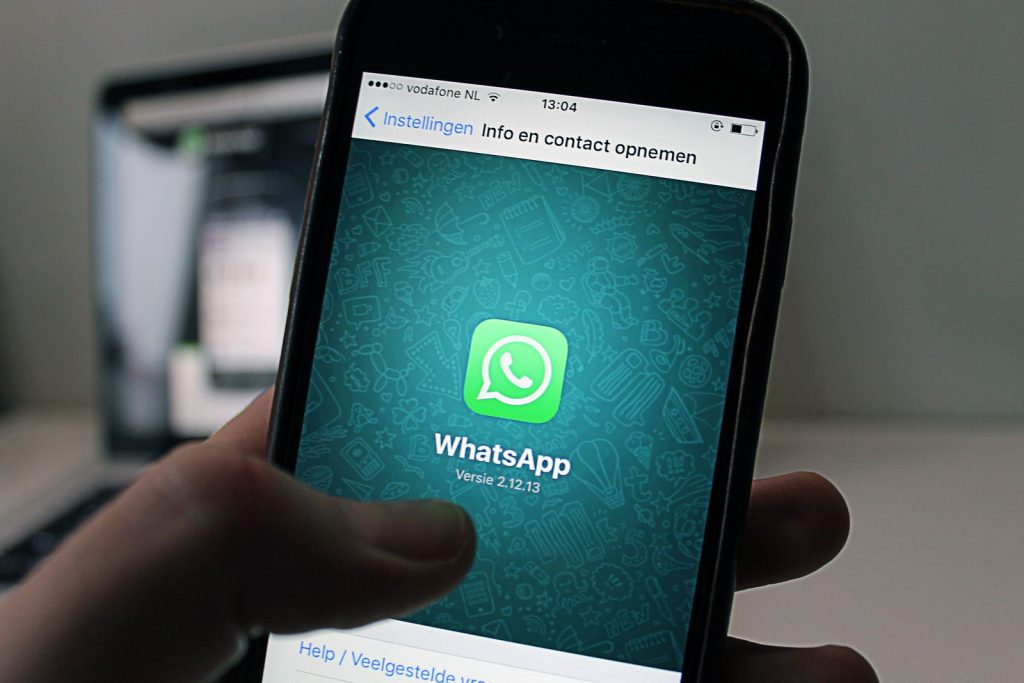
Think about how your own customers behave. They find a business on Google, open the website — and then what? If the only way to contact you is a long form or an email address, most of them will simply close the tab and move on.
But if there is a small green WhatsApp button at the corner of the screen, the same person taps it and starts chatting in seconds — no form, no waiting, no extra app to install. They already have WhatsApp on their phone. You already have WhatsApp on yours.
That is why adding WhatsApp chat to your website is one of the simplest improvements a small business in India can make — and in this post, I will show you how to do it the free way, with no coding needed.
Why WhatsApp Chat Works So Well in India
Your customers are already there. WhatsApp is the app almost every Indian customer opens many times a day — a chat button meets them where they already are instead of asking them to come to you.
It is faster than a form. A contact form asks for a name, email, phone number, and message — and then the customer waits. A WhatsApp chat starts immediately and feels natural, like messaging a friend.
More enquiries, less effort. A visitor who is confused about your service or timing can ask one quick question instead of leaving — and many of those questions turn into orders, bookings, or visits.
It builds trust. When a customer can message you directly and get a reply, your business feels real and reachable — a website with no easy way to talk to the owner feels distant.
It works for every kind of business — salons taking bookings, clinics answering questions, shops sharing product photos, coaches fixing demo classes, service businesses giving quotations.
Method 1: The Simple wa.me Link (Free, No Plugin)
This is the easiest way, and it needs no plugin at all.
WhatsApp gives every phone number a direct chat link: wa.me/ followed by your full number with the country code — no plus sign, no spaces, no dashes. For an Indian number, that is wa.me/91 followed by your 10-digit mobile number.
You can also add a prefilled message, so the customer does not have to type the first line. For example, your link can open WhatsApp with “Hi! I found your website and I have a question.” already typed. The customer just taps send.
Once you have the link, add it as a button on your contact and service pages, in your header or footer so it shows on every page, or behind a “Chat on WhatsApp” button with the WhatsApp logo.
On WordPress, you can add a floating WhatsApp button with a few lines of code in your theme customizer — or with a free plugin, which brings me to the second method.
Method 2: A Free WordPress Plugin (Easiest for Beginners)
If you do not want to touch any code, use a free plugin instead. There are several free WhatsApp chat plugins in the WordPress plugin directory — Joinchat, for example.
The setup takes only a few minutes:
- Install the plugin from your WordPress dashboard and activate it.
- Enter your WhatsApp number with the country code.
- Write the greeting message your visitors will see — something simple like “Hi! How can I help you today?”
- Choose where the button appears — usually floating at the bottom-right corner of every page.
- Save, and check your website on your phone to see the button working.
That is it — no coding, and no developer needed for the basic setup. If you want the button styled to match your website colours or placed only on certain pages, ask me for a quotation through my Get a Quotation page and I will set it up for you.
Where to Place the WhatsApp Button
Put it where visitors expect it: floating at the bottom-right corner of every page, where it never blocks your content and works on mobile and desktop. Add a clear “Chat on WhatsApp” button on your contact page, next to your phone number and email, and on your service and product pages, where questions actually happen — a visitor who can ask right there is far more likely to enquire. If your page ends with “Call now” or “Book a visit”, add WhatsApp next to it, since not everyone likes calling. Just do not put the button in the middle of your text or over your images — easy to find, but never in the way of reading your page.
What Your Greeting Message Should Say
The small message that pops up with the button does more work than most people think — keep it short, friendly, and in the language your customers speak.
A good greeting is simple: “Hi! How can I help you today?” If your customers mostly speak Hindi or Hinglish, write it that way. The goal is to make the first tap feel easy.
You can also set a prefilled message, so customers do not stare at an empty chat box. Something like “Hi! I have a question about your services.” gives them a starting point — they usually edit it to their real question before sending.
Answering Chats: The Part Most Businesses Get Wrong
Adding the button is the easy half — answering is what brings you business.
Reply fast. A WhatsApp enquiry is hot — the customer is thinking about you right now. Reply within a few minutes and the conversation usually moves forward; reply the next day and they have often moved on.
Use WhatsApp Business. It is the free business version of WhatsApp — greeting message, away message, quick replies for repeated questions, and a catalogue for your products or services. If you take business enquiries on WhatsApp, switch to it.
Set your hours honestly. If you reply between 10 AM and 8 PM, say so in your away message: “Thanks for messaging! We reply between 10 AM and 8 PM.” Customers accept waiting when they know when to expect a reply.
Save the numbers. Every chat is a real customer who found you — save their number with a note about what they asked, and next time they message, you will remember them.
The same idea works beyond WhatsApp: social media brings people in, and your website keeps them — I wrote about turning Instagram followers into website customers using exactly this approach.
Common Mistakes to Avoid
Using your personal number with no plan. If your personal WhatsApp is also your business WhatsApp, at least use the business features — greeting message, away message, and catalogue — so customers get a professional experience. Better still, use a separate business number if you can.
A button that does not work. Test it yourself on your own phone: tap it, check the chat opens with the right number, and check the prefilled message appears. A broken button is worse than no button, because it makes your business look careless.
No reply for hours. A WhatsApp button promises a chat. If nobody answers for a whole day, the customer feels ignored. If you cannot reply quickly, set an away message that says when you will.
Hiding the button on mobile. Most of your visitors in India are on their phones — if the button only shows on desktop, you are hiding it from most of your audience. Always check your website on a phone after adding it.
Forgetting local search. A WhatsApp button helps the visitors you already get — to get more of them, your business also needs to show up when nearby customers search on Google. I wrote a guide on local SEO for Mumbai businesses that covers exactly that.
Final Thoughts
Adding WhatsApp chat to your website is a small change with a real result: more conversations, more enquiries, and more customers who feel they can reach you. It costs nothing to start, takes only a few minutes, and uses the app your customers already open every day.
If you want it set up properly — the button styled to match your website, placed on the right pages, with a good greeting message — I can do it for you. Message me through my Get a Quotation page or my contact page, or WhatsApp me directly at https://wa.me/918805015238. Common questions are on my FAQ page, and you can see what I do on my services page.
Your customers are already on WhatsApp. Put your business there too.
Frequently Asked Questions
Do I need WhatsApp Business to add chat to my website?
No — the button works with a normal WhatsApp number too. But WhatsApp Business is free and adds a greeting message, an away message, quick replies, and a product catalogue, so I recommend it for business enquiries.
Is adding a WhatsApp chat button to my website free?
Yes. The wa.me link is free, and there are free WordPress plugins for the floating button. You only pay if you want someone to set it up and style it for you — for that, get a quotation from me through WhatsApp.
Will a WhatsApp chat button work on a Shopify store too?
Yes — Shopify has free apps for a WhatsApp chat button, and the same wa.me link method works there too.
What should I do when I get messages at night?
Set an away message in WhatsApp Business telling customers when you reply — for example, that you answer between 10 AM and 8 PM. Customers are happy to wait when they know when to expect a reply.